
Add your own domain to your Odoo Website
If you use Odoo with Ganemo, you can set up your own domain from which to access Odoo.
At Ganemo, we include hosting and security certificates for up to 3 domains.
First Things First: Choose your domain
The first thing you must do is decide which "domain address" you will use to access Odoo. The most common ones start with "www", for example: "www.mydomain.com", which is mainly used if your website or e-commerce will be based on Odoo, but you can also use any other such as "odoo.mydomain.com" or "erp.mydomain.com".
At Ganemo we suggest creating a CNAME record for your "www" subdomain (www.example.com; of course, you can use any domain name of your choice, with any subdomain (for example, anything.example.com)
Although it may seem obvious, it is worth stating that the domain you use must be under your administration, that is, it must be a domain you have purchased and control. For example, you could not publish your Odoo at "www.google.com" because you don't manage that domain.
You cannot publish Odoo on a "naked domain", that is, a domain that does not use any subdomain name, such as: "https://ganemo.co" (naked domain).
Instead, we suggest setting up a redirect as explained at the end of this page.
Which hosting do you use?
If you have an Odoo subscription with Ganemo, you can work with three different types of hosting:
- Ganemo Online Server
- Odoo Online.
- Odoo.SH
Depending on the type of hosting you work with, the configuration method will be different. You most likely know which type of hosting you use because it is included in the quote you paid to start your subscription.
If you use a hosting type other than those described above, this guide is not for you, and you don't need to keep reading.
Choose the Hosting you use
Our process in four simple steps
Ganemo Online
Add a DNS record to your domain. Now that you are clear about which address you want Odoo published at, go to your domain's DNS record management panel and add a DNS record of type CNAME, with the following details:
- Type: CNAME
- Name: Enter here the name under which you want Odoo to be public, for example "www", "erp", "odoo", etc.
- Value: "nlb-us-east1.ganemo.co." (Without quotes)
- TTL: 1/2 hour or 600 seconds (Depending on the options your domain administrator allows).
Here is an example of how the configuration would look in Godaddy (DNS Manager):
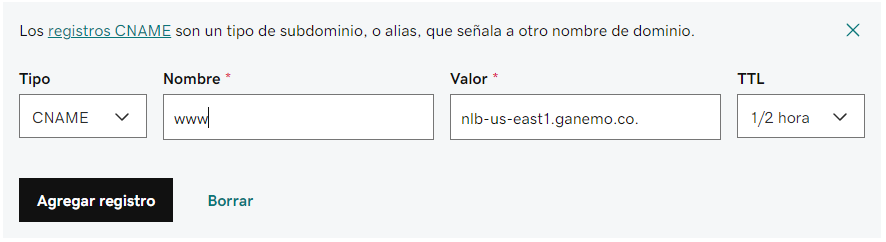
It is very important that you first add the DNS record of type CNAME in your domain administrator exactly as indicated above, and only then send an email to "ayuda@ganemo.co" stating which address you have configured. For example: "Dear Ganemo team, I have already configured my domain's DNS so that Odoo is public at www.mydomain.com, please proceed to publish it."
Publication on your domain is almost immediate.
Important caution.
You must not configure the nameservers or the DNS zones, only a DNS record of type CNAME. In the nameserver you generally decide which platform will manage your domain, and neither Ganemo nor Odoo manages your domain; we only provide you with web hosting. So follow our instructions carefully, because under no circumstances will we ask you to modify the nameserver.
Odoo Online
Add a CNAME record. Now that you are clear about which address you want Odoo published at, go to your domain's DNS management panel and add a record of type CNAME, with the following details:
- Type: CNAME
- Name: Enter here the name under which you want Odoo to be public, for example "www", "erp", "odoo", etc.
- Value: Point this to the same URL you use to log in to your current database, for example: "example.odoo.com"
- TTL: The lowest you can find
Important caution.
You must not configure the nameservers, only a CNAME record. In the nameserver you generally decide which platform will manage your domain, and neither Ganemo nor Odoo manages your domain; we only provide you with web hosting. So follow our instructions carefully, because under no circumstances will we ask you to modify the nameserver.
After adding your CNAME record, you must configure the domain for your production database in your database manager.

Go to the "Configure your own Domain" option
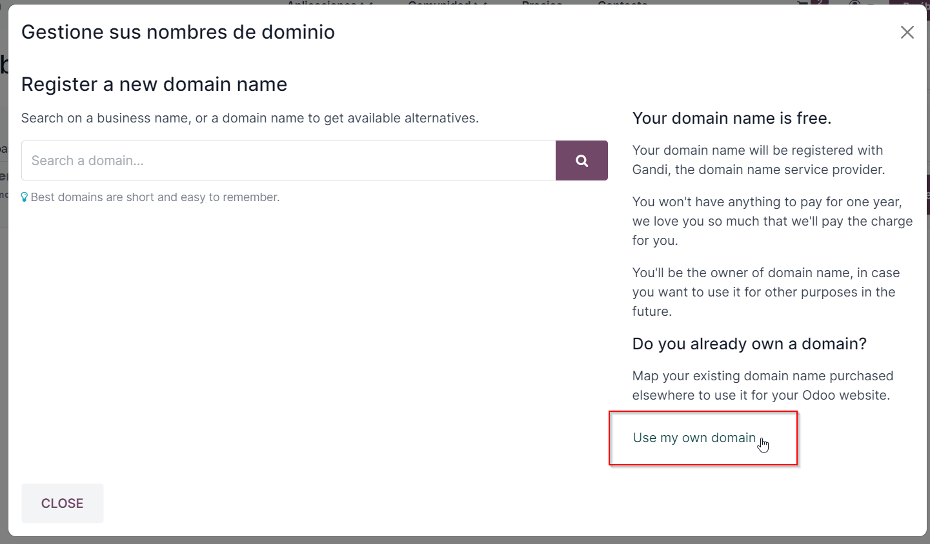
And enter your Domain and Verify it.
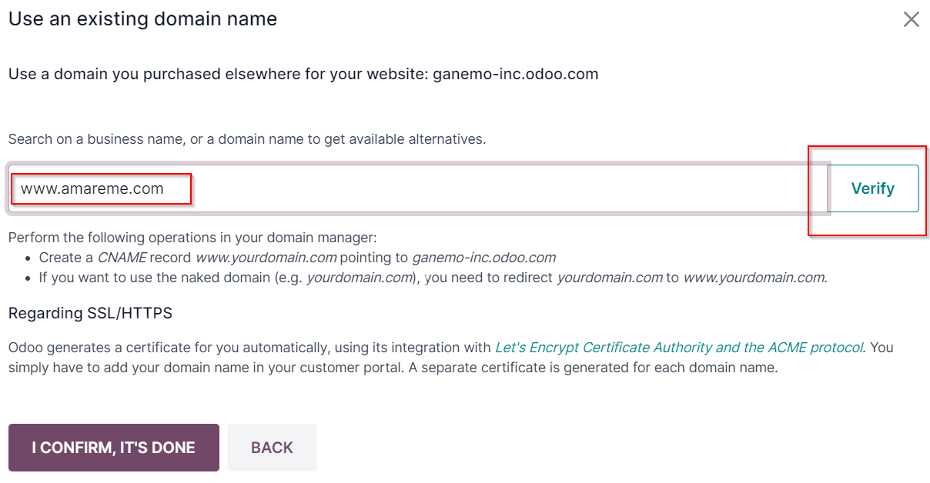
You can repeat these steps for each Domain or Subdomain you want to add.
Odoo.sh
Add a CNAME record. Now that you are clear about which address you want Odoo published at, go to your domain's DNS management panel and add a record of type CNAME, with the following details:
- Type: CNAME
- Name: Enter here the name under which you want Odoo to be public, for example "www", "erp", "odoo", etc.
- Value: Point this to the same URL you use to log in to your current database, for example: "example.odoo.com"
- TTL: The lowest you can find
Here is an example of how the configuration would look in Godaddy (DNS Manager):

Important caution.
You must not configure the nameservers, only a CNAME record. In the nameserver you generally decide which platform will manage your domain, and neither Ganemo nor Odoo manages your domain; we only provide you with web hosting. So follow our instructions carefully, because under no circumstances will we ask you to modify the nameserver.
Naked Domain
A naked domain is a domain name that has no subdomain at the beginning of the address (for example, "ganemo.co" instead of www.ganemo.co). You may want your naked domain to redirect to your website, since some visitors may not type the full domain name to reach your website.
- Open your domain name administrator panel.
- Create a redirect from the naked domain (example.com) to your main domain name (www.example.com).
Note: Depending on your domain registrar, this redirect may already be preconfigured.
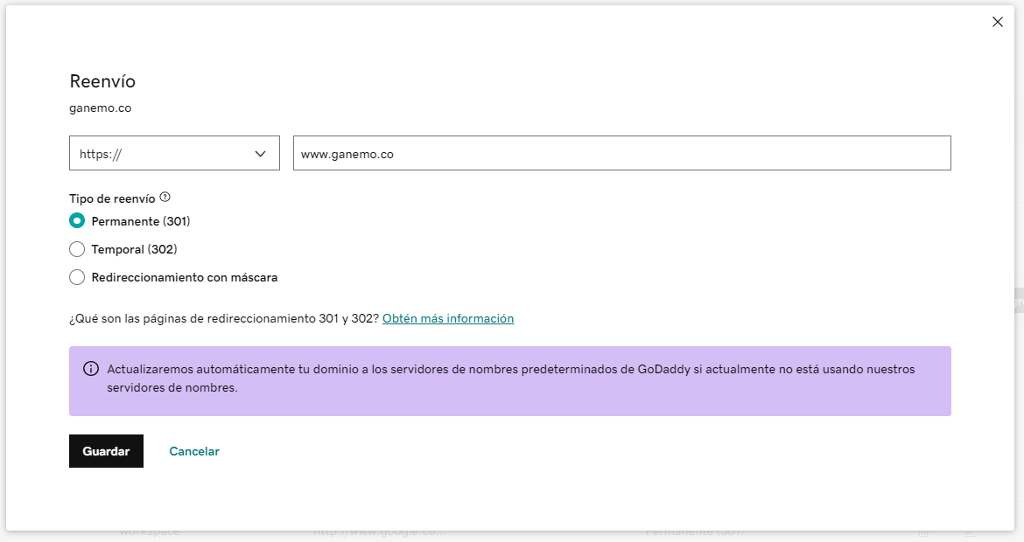
Below is an example of how it is configured in "Godaddy", but if you have questions about how to set up this redirect, you should contact the support of the platform where you manage your domain's DNS. Ganemo cannot help you with this step.
Example in Godaddy: In the "Forwarding" tab of your domain's DNS manager, you must create a new forward

Custom domain in Odoo: FAQ
A CNAME record for the subdomain (for example, www) pointing to your hosting address: on Ganemo Online, the one shown on this page; on Odoo Online, your database address (yourcompany.odoo.com); on Odoo.sh, the project or branch address shown in Settings ‣ Custom domains.
The recommended setup is a 301 redirect from the root domain (yourdomain.com) to www.yourdomain.com. According to the Odoo documentation, no SSL certificate is generated for domains without a subdomain, which is why this page explains how to set up the forwarding.
DNS changes can take up to 72 hours to propagate. On Odoo Online and Odoo.sh, the Let's Encrypt SSL certificate can take up to 24 hours to be issued; if your domain has a CAA record, it must allow Let's Encrypt.
No. You only add a CNAME record in your domain's DNS manager; the nameservers stay with your provider.
It is the base address Odoo uses in the links your customers receive, such as quotations or the portal. It must be the full address with https:// and no trailing slash. It updates itself when an administrator logs in through the new domain, unless the web.base.url.freeze parameter is enabled.
Source: official Odoo 19 documentation (Website, Domain names), checked on 2026-11-21.
Want to review your case with us? Book a diagnostic session or message us on WhatsApp at +1 (828) 672 6150.